Step 1:
|
kali ini admin bakal ng-share tentang bagaimana sih cara ng-remote PC . kali ini software yang bakal di gunakan ialah Radmin . langsung aja ya di ikutin
sumber : https://www.radmin.com/radmin/how_it_works.php
Download and Install Radmin Server on the remote PC
|
| Download Radmin Server 3.5. Execute rserv35.msi and follow the on-screen instructions. |
Step 2:
|
Download and Install Radmin Viewer on the local PC
|
| Download Radmin Viewer 3.5. Execute rview35.msi and follow the on-screen instructions. |
Step 3:
|
Configure Radmin Server on the remote PC
|
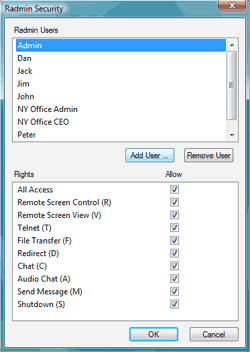
| Right Click on the Radmin Server tray icon and choose "Settings For Radmin Server". Select the "Permissions" button to set the password for network access to the Radmin Server. You must know the IP address of your remote computer. To know it move your mouse pointer over the Radmin Server tray icon. It will show you the IP address. Now your Radmin Server is ready for starting the remote access connection.
Settings For Radmin Server
|
Permissions for Radmin Server: Radmin Security
|
|
Step 4:
|
Run Radmin Viewer on the local computer
|
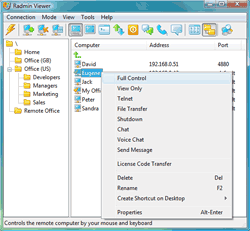
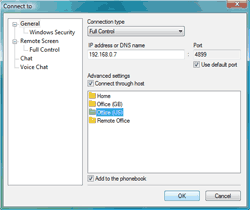
| From the Start menu click on "Radmin Viewer", create a new connection and enter the IP address of the remote computer. Then select your connection type and press "Connect". Enter the password you already set on the remote PC and enjoy working remotely!
|
|
|
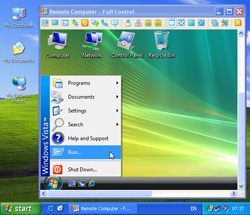
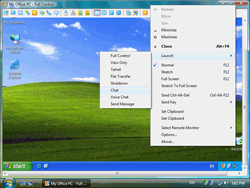
Remote Desktop under Windows Vista
|
|
|


 untuk menginstall driver pada windows 7 di perlukan beberapa softawre seperti power iso dan winrar . langkah awal 1. klik kanan pada iso d...

 on:absolute; top: 0px; right: 0px;" />

0 komentar:
Posting Komentar